Reference Model: PS5
Select the User Interface below that matches your device:


STEP-BY-STEP GUIDE:
Scroll left and right to see the audio settings for you TV. (Enlarge image by clicking on it)
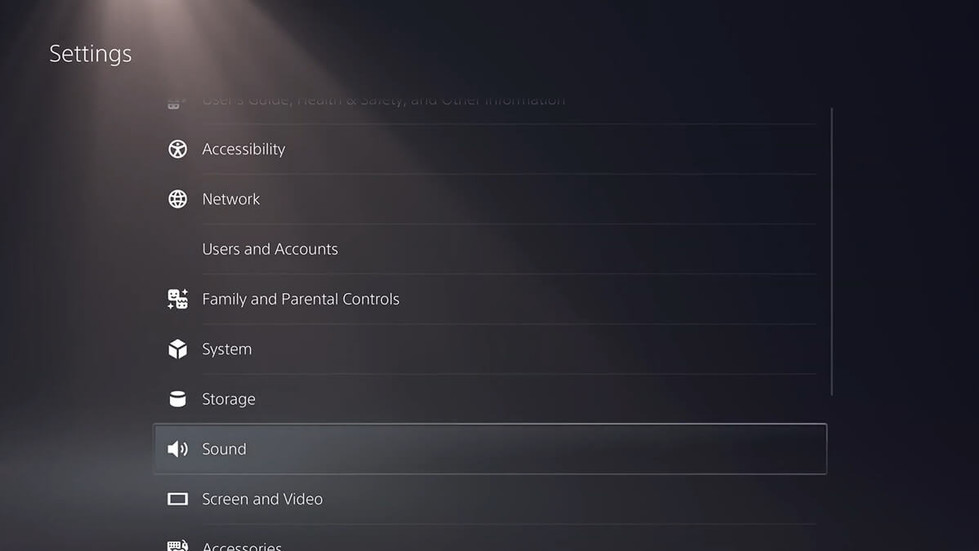
1. Audio Settings
Sequence:
Settings > Sound > Audio Output
Settings > Sound > Audio Output > Output Device
Settings > Sound > Audio Output > HDMI Device (AV amplifier)
Settings > Sound > Audio Output > Switch Output Device Automatically > On
Settings > Sound > Audio Output > HDMI Device Type > AV amplifier
Settings > Sound > Audio Output > HDMI Device Type > AV amplifier > Number of Channels > 7.1 ch
Settings > Sound > Audio Output > General > Audio Format (Priority) > Dolby Atmos



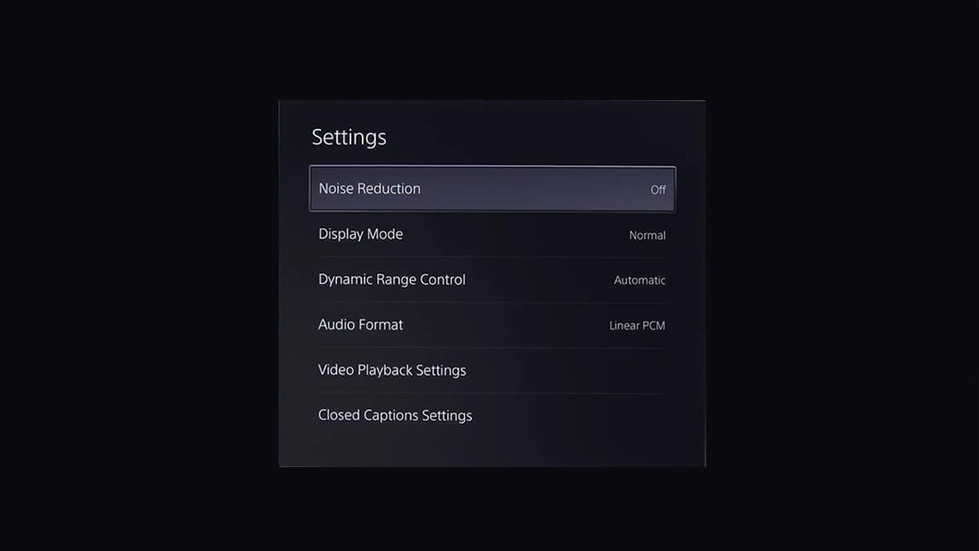
2. Blu-ray Settings
Sequence:
Insert Blu-Ray Disc into your PS5 (Disc Version only). Click on the Disc Player App when it appears. Play the Disc.
Control Panel > Settings
Settings > Noise Reduction > Off > Dynamic Range Control > Off > Audio Format > Dolby Atmos