top of page
Dragon support / Device Settings / PS4 PRO
LG TV
Step-by-Step Instructions for Best Experience (DRAGON)

Reference Model: LG UN7300 (2020)
Select the User Interface below that matches your TV:


STEP-BY-STEP GUIDE:
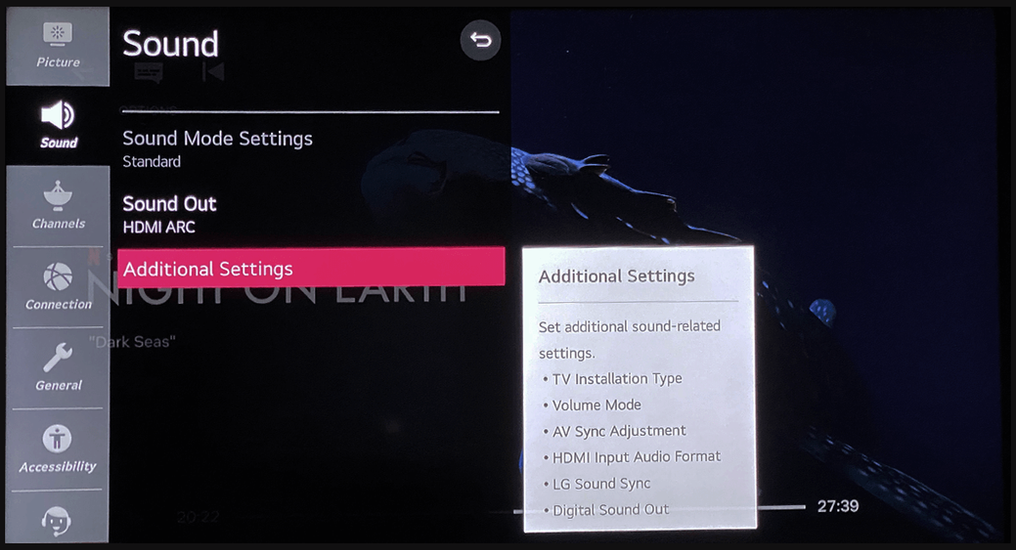
Scroll left and right to see the audio settings for you TV. (Enlarge image by clicking on it)
Sequence:
All Settings > Sound
Sound > Sound Out
Sound > Sound Out > HDMI ARC
Sound > Advanced Settings
Sound > Advanced Settings > Digital Sound Out > Auto




bottom of page